Discord app and bot
Seatbit uses one Discord application for both the "Continue with Discord" login and the bot. The bot runs inside Seatbit: Discord sends button clicks and slash commands to Seatbit over HTTPS, so there is no extra process to host.
1. Create the application
- Go to the Discord Developer Portal and click New Application.
- OAuth2: copy the Client ID and reset/copy the Client Secret. Add the redirect
https://seatbit.example.com/api/auth/callback/discord(yourBETTER_AUTH_URL+/api/auth/callback/discord). - Start Seatbit with
DISCORD_CLIENT_IDandDISCORD_CLIENT_SECRETset as environment variables and sign in. The first account becomes platform admin. (To pick admins up front, setADMIN_EMAILSto the emails of their Discord accounts.)
Keep the login variables
Login is Discord-only, so keep the two variables in place even if you later save the values in the platform settings. If wrong ones are ever saved there, nobody can sign in; node scripts/admin.mjs reset-setting discord.clientSecret (and discord.clientId) in the container brings back the env values.
2. Set up the bot
- In the developer portal, Bot: reset and copy the token.
- General Information: copy the Public Key, and set Interactions Endpoint URL to
https://seatbit.example.com/api/discord/interactions. Seatbit must be running and reachable for Discord to accept it. - In Seatbit, open Admin → Platform settings → Discord, enter the bot token and public key, and click Check bot & register slash commands. This registers
/lansand/seatbit.
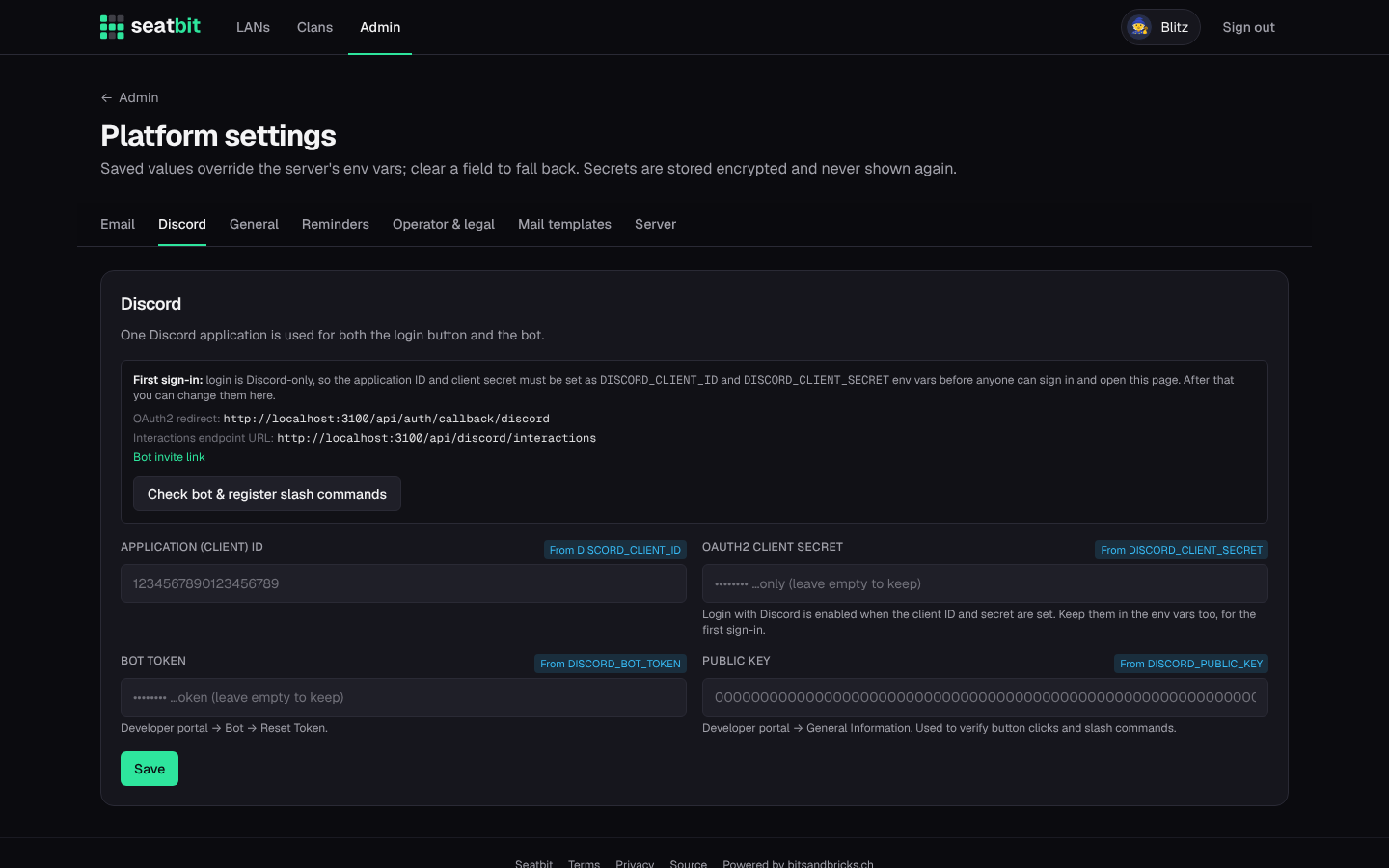
The page also shows the bot invite link. Clan admins find the same link in their clan settings, add the bot to their server and run /seatbit here there (see Discord and WhatsApp). The invite asks for the permissions the bot uses: send messages and embeds, pin messages, create invites, and use slash commands.
Privacy
The bot only receives the commands and button clicks addressed to it, never other messages. Data it stores is listed in the built-in privacy policy.